How to Go LIVE on TikTok
A complete step-by-step walkthrough. Everything happens right on your phone — no extra equipment needed to start.
Before You Go Live
A little preparation goes a long way. Run through this quick checklist first.
Step-by-Step Guide
Follow these steps on your phone to start your first live stream.
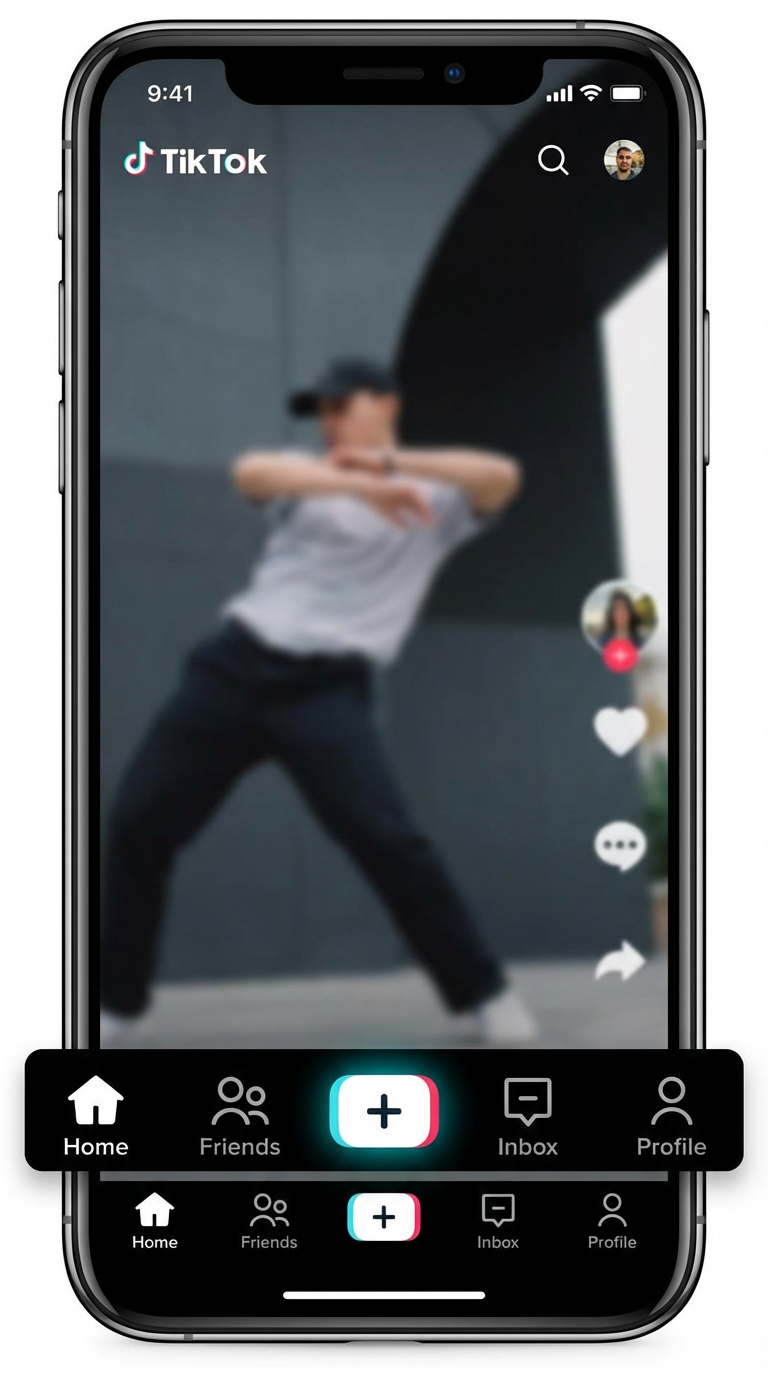
Open TikTok & Tap the "+" Button
Open the TikTok app on your phone. At the bottom center of the screen, you'll see the "+" (Create) button. Tap it to open the camera.
Pro Tip: Make sure your TikTok app is updated to the latest version for the best experience.
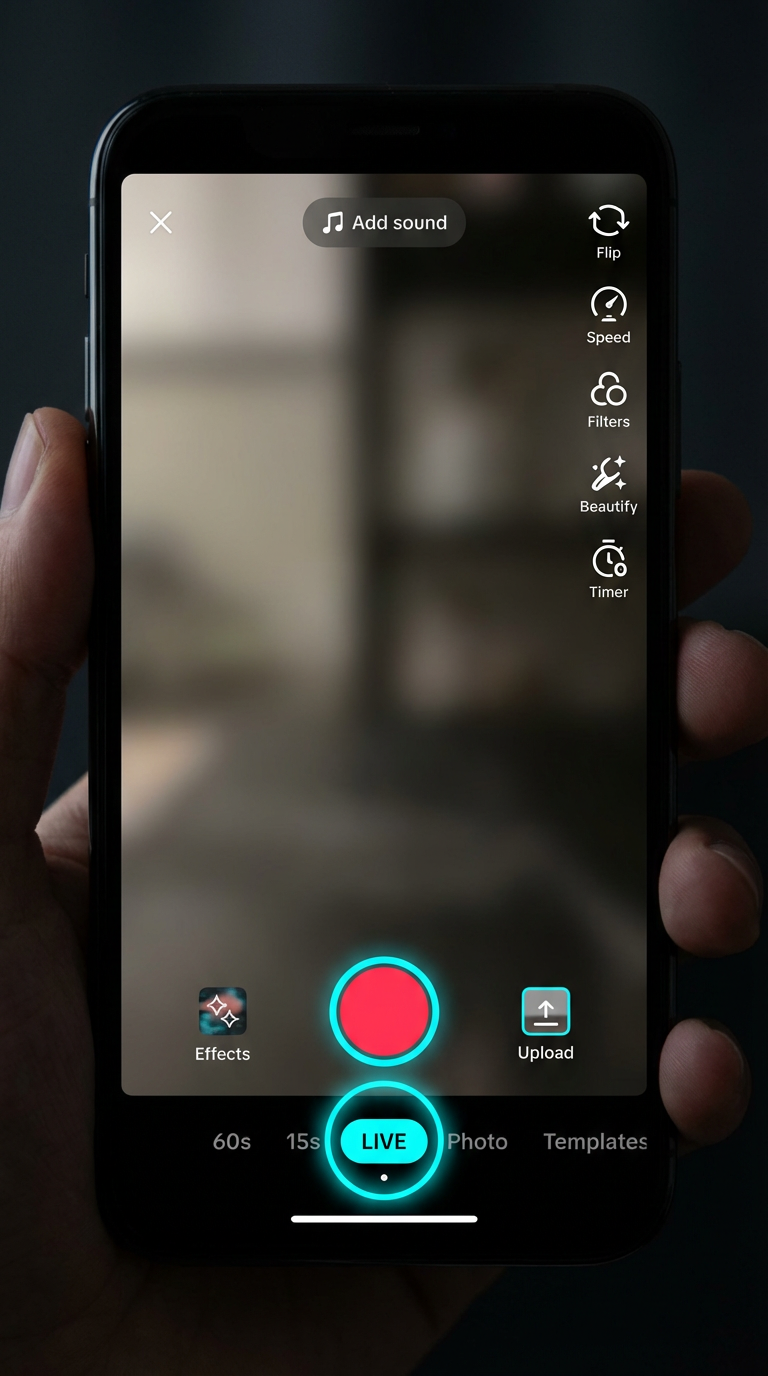
Swipe to Find "LIVE" Option
Once the camera opens, look at the bottom of the screen. You'll see recording modes like "60s", "15s", etc. Swipe left until you see "LIVE". Tap it.
Pro Tip: If you don't see the LIVE option, you may not have reached 1,000 followers yet.
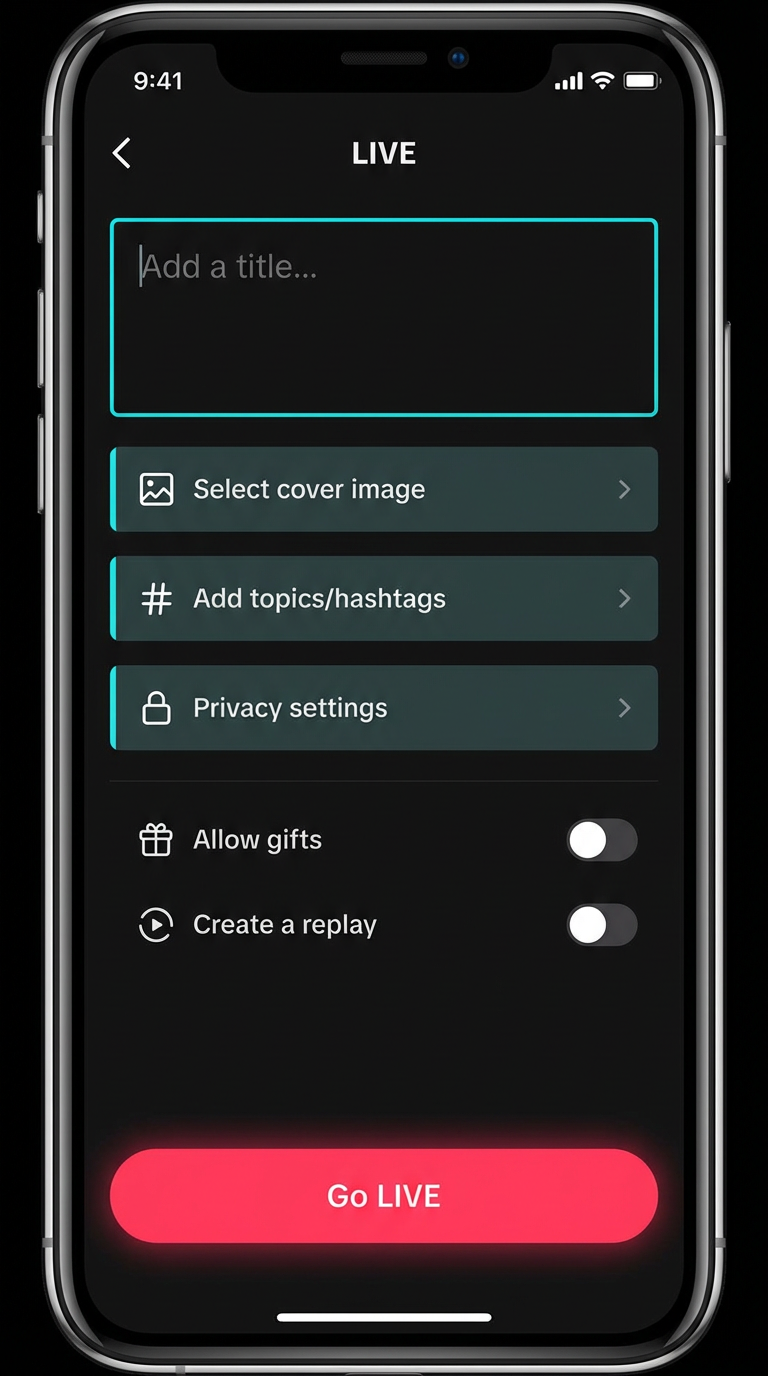
Set Up Your Stream
Add a catchy title that describes your content (e.g., "Q&A with me! Ask anything!"). You can also add a cover photo, select topics, and adjust settings.
Pro Tip: A great title increases viewers. Be specific about what you're doing — "Painting a sunset" beats "Just chatting".
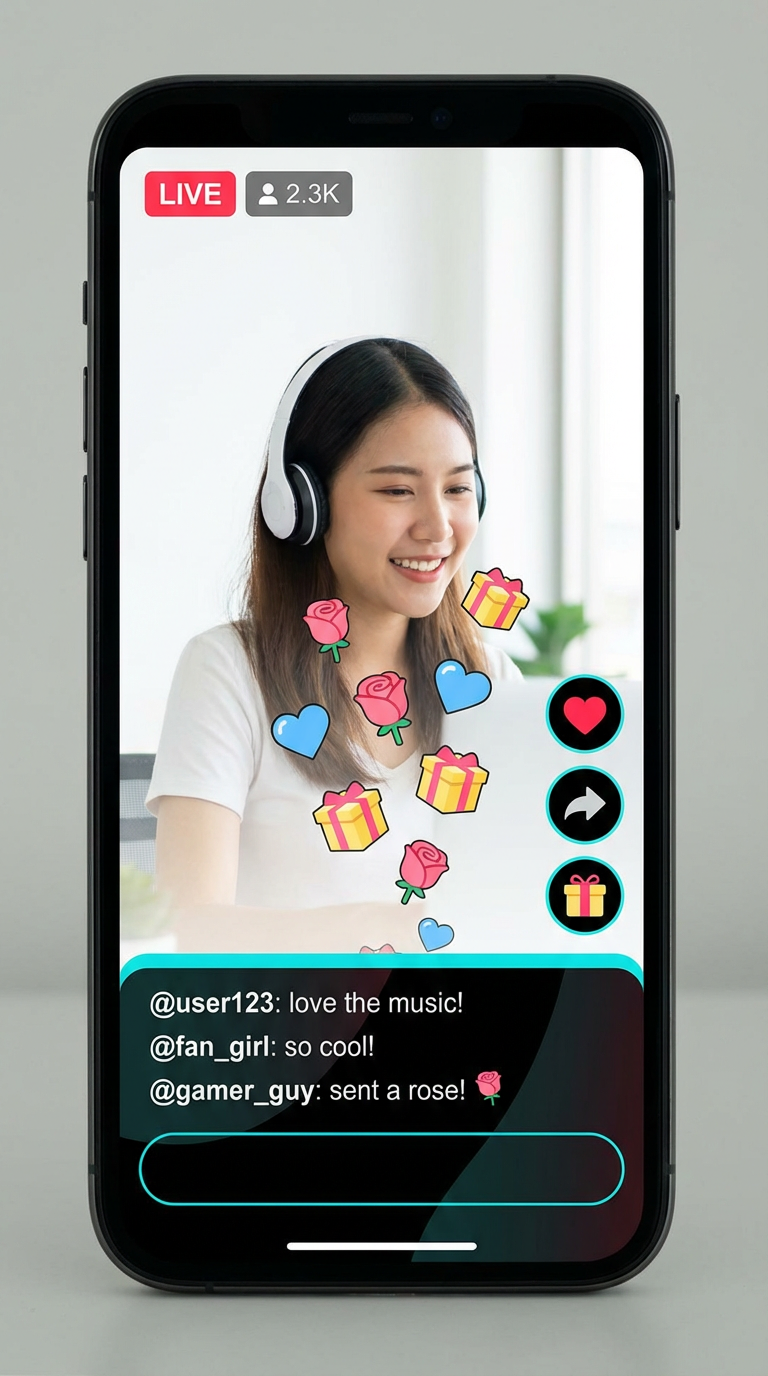
Tap "Go LIVE" and Start Streaming!
When you're ready, tap the "Go LIVE" button. Your stream will begin immediately. Start talking, engaging, and having fun! You'll see comments and gifts appearing on screen.
Pro Tip: Greet every new viewer by name. This personal touch keeps people watching and encourages gifts.
Ending Your Stream
When you're ready to wrap up, here's how to end gracefully.
Thank your viewers and gift-givers before ending.
Let them know when your next stream will be.
Tap the “X” button in the top corner of your screen.
Confirm that you want to end the stream.
TikTok will show you a summary of your stream stats (viewers, gifts, duration).
Technical Setup Tips
Internet
Use Wi-Fi when possible. A stable connection of 5+ Mbps upload speed ensures smooth streaming. Close background apps.
Lighting
Face a window for natural light, or use a ring light. Good lighting makes you look professional and keeps viewers engaged.
Audio
Stream in a quiet space. Your phone mic works fine to start. For better quality, use earbuds with a built-in microphone.
Accessibility Tip
If you use a screen reader, TikTok's LIVE interface is compatible with both VoiceOver (iOS) and TalkBack (Android). Enable auto-captions before going live so deaf and hard-of-hearing viewers can follow along.Learn more about accessibility features →
Now Learn How to Earn
You know how to go live. Next, discover how to turn those streams into income.
Monetization Guide